
Posting one image can work when the moment is simple. But many updates need more room: a trip recap, a product launch, a client project, a recipe process, a before-and-after result, or a family event with more than one highlight. That is where Instagram carousel posts become useful.
If you want to know how to post multiple photos on Instagram, the process is simple once you know where the multi-select option lives. You can add several photos or videos to one feed post, arrange them in the right order, edit them, write one caption, and publish everything together. This keeps your feed cleaner and gives viewers a fuller story without forcing you to upload several separate posts.
This guide walks through the steps, creative choices, formatting tips, caption ideas, and common mistakes to avoid. You will also learn how to make carousel posts more engaging, more polished, and better suited for personal, creator, or business accounts.
What Multiple Photo Posts Mean on Instagram
A multiple photo post on Instagram is usually called a carousel post. Instead of sharing a single image, you can publish several photos or videos inside one feed post. Viewers swipe left to see each item, while likes, comments, saves, and shares stay attached to the same post.
This format is useful when one image cannot tell the full story. A carousel can show different angles, steps, scenes, or details in a natural order. For brands, creators, and everyday users, it offers more context without crowding the profile grid with repeated uploads.
Why Instagram Carousel Posts Work So Well
Carousel posts tend to hold attention because they invite action. When people swipe through several photos, they spend more time with your content. That extra interaction can help signal that the post is useful, interesting, or worth showing to more people.
They also make storytelling easier. A travel post can move from arrival to final sunset. A business post can move from problem to solution. A creator can show the final image first, then behind-the-scenes moments, details, and a closing slide with a clear message.
Quick Benefits of Posting Multiple Photos
- Share a fuller story without uploading several separate posts.
- Keep related photos, videos, and moments in one place.
- Encourage viewers to swipe, pause, save, and engage.
- Show products, services, events, or transformations from several angles.
- Make tutorials, recaps, and photo dumps easier to follow.
- Keep your Instagram grid cleaner and better organized.
How to Create a Multiple Photo Post in the Instagram App
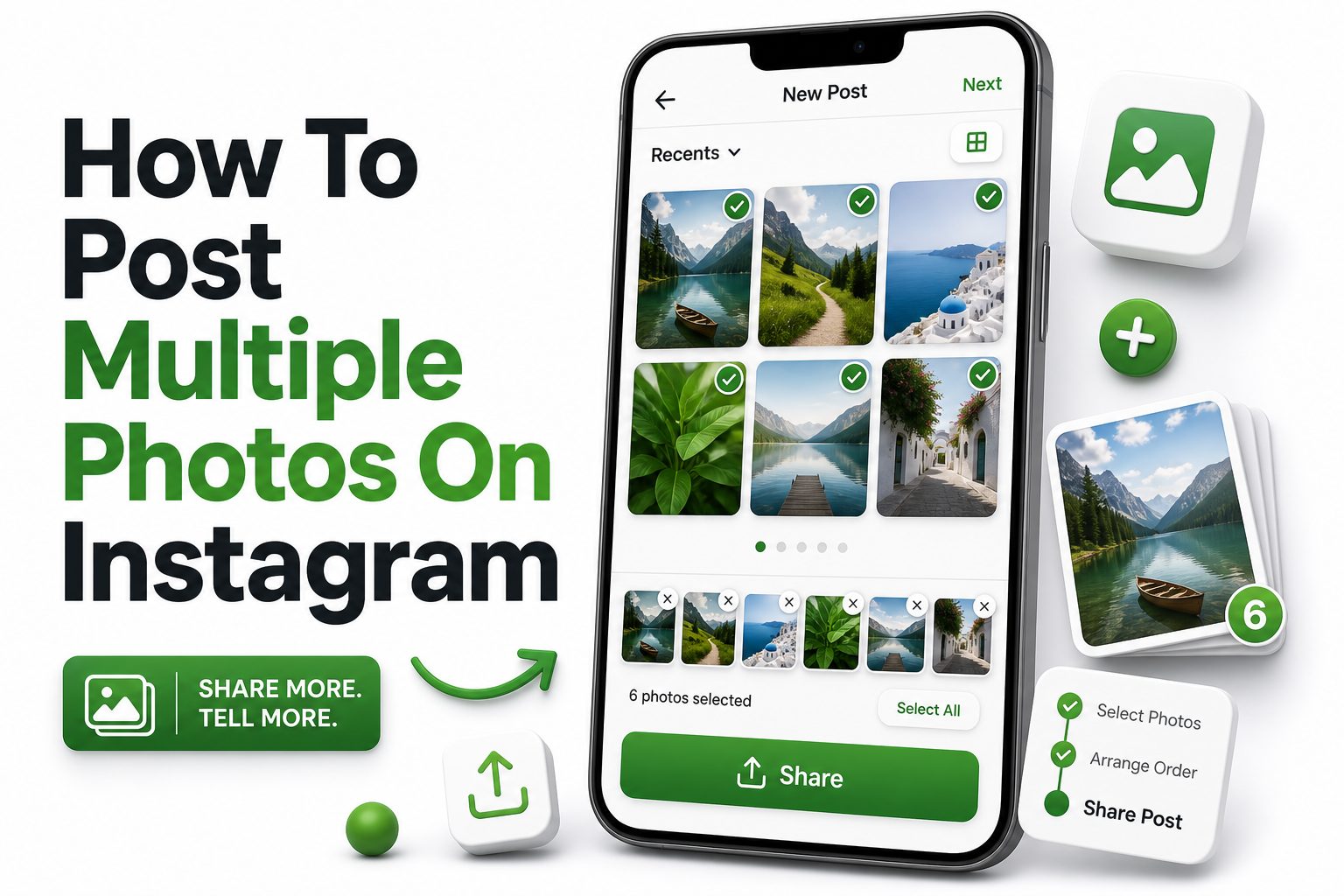
Open the Instagram app and tap the plus icon to create a new post. Choose the post option, then look for the multi-select icon, often shown as overlapping squares. Tap it, then select the photos or videos you want to include from your camera roll.
Select the images in the order you want them to appear. Instagram usually numbers each selected item, which helps you plan the carousel flow. After choosing your media, tap Next, apply edits or filters, write your caption, add tags or location, then share the post.
Choosing the Right Photos Before You Upload
Before opening Instagram, review your camera roll and narrow down your strongest images. Choose photos that support one clear idea rather than adding everything available. A tighter carousel usually performs better because each slide gives viewers a reason to keep swiping.
Look for variety in framing, distance, and detail. For example, a product carousel might include a lifestyle shot, close-up texture, packaging, use case, and customer result. A personal carousel might mix wide scenes, portraits, candid moments, and one memorable closing image.
Step-by-Step Checklist Before Posting
- Pick photos that belong to the same story or theme.
- Remove blurry, duplicate, or weak images before uploading.
- Place the strongest image first to attract attention.
- Arrange the rest in a clear, natural order.
- Check that crops look consistent across all slides.
- Write a caption that gives context without repeating every image.
- Add tags, location, and alt text when useful.
- Preview everything before tapping Share.
Best Order for Instagram Carousel Photos
The first photo matters most because it appears in the feed and on your profile grid. Choose an image that is clear, visually strong, and easy to understand quickly. If the first slide feels confusing or dull, fewer people will swipe through the rest.
After the first image, arrange the carousel like a short story. Start with the hook, build interest, then end with something memorable. A final slide can show a result, detail, call to action, or favorite image that makes the post feel complete.
Editing Multiple Photos for a Consistent Look
Instagram lets you apply one filter across all selected images or edit each photo individually. For a polished carousel, try to keep brightness, contrast, warmth, and saturation fairly consistent. The photos do not need to look identical, but they should feel like they belong together.
If your photos were taken in different lighting, edit them before uploading. Outdoor, indoor, and low-light shots can clash inside one carousel. A light touch usually works best: adjust exposure, straighten horizons, crop distractions, and avoid heavy filters that make skin tones or colors look unnatural.
Carousel Photo Order Comparison
Photo Position | Best Use | Practical Example
First slide | Strongest hook | Best travel shot, final result, product hero image
Middle slides | Story details | Behind-the-scenes, steps, close-ups, alternate angles
Second-to-last slide | Supporting proof | Testimonial, process image, comparison, extra context
Final slide | Strong finish | Favorite moment, call to action, finished look, summary image
How Many Photos to Add to One Instagram Post
Instagram carousel limits can vary by account, app version, and posting method, so check the current limit inside your app while selecting media. Many users can add several photos or videos to one post, making it easier to group related content together.
The best number is not always the maximum. Three to seven strong slides often work better than a crowded post with too many similar images. If every photo adds value, include it. If a slide repeats the same idea, leave it out.
Using Photos and Videos in the Same Carousel
Instagram allows users to combine photos and videos in a carousel post when the feature is available on their account. This can make a post more dynamic, especially when a short clip adds movement, sound, or context that still images cannot capture.
Mixing formats works best when there is a purpose. A restaurant can show plated dishes, then a short video of preparation. A fitness creator can show a progress photo, then a movement clip. Keep videos concise so the carousel does not feel slow.
Smart Tips for Better Carousel Engagement
- Use the first slide to create curiosity or show the strongest result.
- Avoid adding near-identical images beside each other.
- Put detailed images after a wider context shot.
- Use captions to guide viewers through the story.
- Add a clear prompt when you want comments or saves.
- Keep branding subtle unless the post is promotional.
- Review the post on your profile after publishing.
Writing Captions for Multiple Photo Posts
A good carousel caption explains the bigger story behind the images. You do not need to describe every slide in detail. Instead, give readers context, share the purpose of the post, and add useful notes that make the photos more meaningful.
For personal posts, a natural caption may mention the event, place, mood, or memory. For business posts, the caption can explain benefits, features, results, or next steps. Strong captions feel specific, helpful, and written for the people most likely to care.
Hashtag Strategy for Carousel Posts
Hashtags still help categorize content, but they should be relevant and restrained. Use tags connected to the subject, location, niche, audience, or content type. A carousel about home renovation, for example, should use specific terms rather than broad tags alone.
Mix broader hashtags with niche ones. A travel creator might combine city tags, neighborhood tags, hotel tags, and travel style tags. A business might use product category tags, local service tags, and branded tags. Relevance matters more than adding the largest possible list.
Caption Ideas by Post Type
- Travel recap: mention the place, trip highlight, and favorite slide.
- Product showcase: explain the main benefit and what each angle shows.
- Tutorial post: summarize the result and tell viewers to swipe through the steps.
- Event recap: name the event, key moment, and people involved.
- Portfolio post: describe the project goal, process, and final result.
- Personal photo dump: keep the tone natural and let the images carry the mood.
Tagging People in Multiple Photos
When creating a carousel, Instagram usually lets you tag people on individual slides. This is helpful when different people appear in different photos. Instead of tagging everyone on the first image, place tags where they actually belong.
For business or creator posts, tagging can increase reach when used appropriately. Tag collaborators, photographers, venues, clients, brands, or team members connected to the content. Avoid tagging unrelated accounts for attention, because it can look spammy and reduce trust.
Adding Location to Carousel Posts
A location tag can make your post easier to find, especially for travel, restaurants, events, real estate, and local businesses. If the carousel is tied to one place, adding the location gives viewers helpful context and may improve local visibility.
Use the most accurate location available. A neighborhood, venue, landmark, or city can all work depending on the post. If privacy is a concern, use a broader location or skip the tag. For personal posts, safety should matter more than reach.
Important Facts About Multiple Photo Posts
- Viewers swipe through carousel posts from left to right.
- Likes and comments apply to the whole post, not separate slides.
- The first slide appears on your profile grid.
- Captions usually apply to the full carousel.
- You can often edit captions, tags, and location after publishing.
- Some carousel editing options may vary by app version.
- Third-party scheduling tools may have different media limits than posting directly in Instagram.
Common Mistakes to Avoid
One common mistake is posting too many similar images. If five photos show almost the same pose, plate, outfit, or view, the carousel feels repetitive. Choose the strongest version and save the rest for Stories, Reels, or a later post.
Another mistake is ignoring crop consistency. When images have different dimensions, Instagram may crop them in ways that cut off important details. Preview every slide carefully before sharing, especially when mixing portraits, landscapes, screenshots, and videos in one post.
How to Post Multiple Photos on Instagram From Desktop
Instagram’s desktop version supports feed posting for many users, including carousel uploads. Log in through a browser, click the create button, and select multiple files from your computer. Then review, crop, edit, write the caption, and publish.
Desktop posting can be useful for photographers, marketers, designers, and businesses that store edited files on a computer. It also makes caption writing easier because typing, proofreading, and adding structured text can be more comfortable on a full keyboard.
Mobile App vs Desktop Posting
Option | Best For | Main Advantage
Mobile app | Everyday users and quick posting | Easy access to camera roll and in-app tools
Desktop browser | Edited images and business workflows | Easier file management and caption writing
Scheduling tool | Content teams and planned campaigns | Better planning, approval, and calendar control
Stories | Casual updates and temporary moments | Fast sharing without changing the profile grid
Using Carousel Posts for Business Accounts
Business accounts can use carousel posts to explain products, services, case studies, and customer results. A single-image post may show what something looks like, but a carousel can show why it matters, how it works, and what makes it different.
For example, a skincare brand can show texture, application, ingredients, customer use, and packaging. A coach can show a client problem, framework, result, and testimonial. A local shop can show new arrivals, prices, details, and store location in one post.
Using Carousel Posts for Personal Accounts
Personal carousel posts are ideal for birthdays, vacations, weddings, meals, hobbies, pets, home projects, and everyday memories. They let you share several moments without making your followers scroll past a long run of individual uploads.
The best personal carousels feel edited but not overworked. Choose photos that capture different parts of the moment. A mix of posed, candid, scenic, and detail shots often feels more natural than a set of images that all look the same.
Practical Carousel Ideas
- Before-and-after transformation post.
- Step-by-step recipe or DIY process.
- Vacation recap with one photo from each key moment.
- Product launch showing features, packaging, and use.
- Event recap with people, venue, details, and closing shot.
- Client portfolio post with problem, process, and result.
- Outfit carousel with full look, details, and accessories.
- Educational post with short visual tips across slides.
How to Make the First Slide Stronger
The first slide should work even if nobody reads the caption. Use a clear subject, strong composition, and enough contrast to stand out in the feed. Avoid making the first image too busy, too dark, or too dependent on explanation.
If the post is educational or promotional, the first slide can include simple text on the image. Keep it short and readable on a phone screen. For photo-based posts, let the image do the work and use the caption for extra context.
How to Encourage More Swipes
Give viewers a reason to keep moving through the carousel. The first image can tease a result, while later slides show the process. A caption can also mention that more details, angles, or steps are included in the remaining slides.
Do not rely on vague prompts. Instead of saying “swipe,” explain the value. For example, “The final slide shows the before photo” or “Slide four has the full setup.” Specific direction feels more useful and less like engagement bait.
Simple Ways to Improve Swipe Rate
- Put the most interesting image first, not last.
- Use a logical order viewers can follow quickly.
- Vary wide shots, close-ups, and detail images.
- Mention a specific slide in the caption.
- Keep each slide visually clean and easy to read.
- End with a strong image, result, or useful takeaway.
After You Publish the Carousel
Once the post is live, check it on your profile and in the feed. Make sure every slide appears in the correct order, tags work properly, and the caption is clean. Small mistakes are easier to catch right after publishing.
You can usually edit the caption, location, tags, and alt text after posting. In some cases, you may also be able to remove a slide from a carousel. Available editing options can change, so check the three-dot menu on the post.
Measuring Carousel Performance
For creator and business accounts, Instagram insights can show how people interact with your carousel. Pay attention to reach, likes, comments, saves, shares, profile visits, and follows. Saves and shares often matter when the content is useful or educational.
Compare carousel posts with your single-image posts over time. If carousels get more saves or comments, they may fit your audience well. Look at which topics, first slides, and post lengths perform best, then repeat the patterns that make sense.
Useful Metrics to Review
- Reach shows how many accounts saw the post.
- Saves indicate that people found the content worth returning to.
- Shares suggest the post was useful, relatable, or entertaining.
- Comments show conversation and audience interest.
- Profile visits reveal whether the post encouraged deeper interest.
- Follows help measure whether the content attracted new audience members.
Troubleshooting Multiple Photo Posts
If you cannot select multiple photos, update the Instagram app first. Then close and reopen it, check your internet connection, and make sure the app has permission to access your photos. Sometimes the option appears differently depending on device or account.
If photos upload in the wrong order, go back before publishing and reselect or rearrange them. If cropping looks wrong, edit the images outside Instagram before uploading. Preparing files in the same ratio can prevent awkward cuts and uneven framing.
When to Use Stories Instead of a Carousel
Use Stories when the content is casual, temporary, or better shared in quick pieces throughout the day. Behind-the-scenes moments, quick updates, polls, and informal clips often fit Stories better than the permanent feed.
Use a carousel when the content should stay on your profile and remain easy to revisit. Tutorials, recaps, product collections, portfolios, announcements, and meaningful personal memories usually deserve a feed post because they have longer-term value.
Best Format by Content Goal
Content Goal | Better Format | Reason
Quick daily update | Stories | Temporary and casual
Photo collection | Carousel post | Keeps related images together
Tutorial | Carousel post | Easy to follow step by step
Live reaction | Stories | Fast and informal
Product education | Carousel post | Allows more detail
Short entertainment clip | Reel | Better for motion-first content
Conclusion
Learning how to post multiple photos on Instagram gives you a better way to share complete moments, useful information, and stronger visual stories. Instead of choosing one image or uploading several separate posts, a carousel lets you group related photos and videos into one clean feed update.
The key is to be selective. Choose images that support one clear idea, place the strongest photo first, keep edits consistent, and write a caption that adds context. Whether you are sharing travel memories, a personal photo dump, a product launch, or a step-by-step tutorial, the carousel format can make your content more engaging and easier to follow.
Before publishing, preview the order, crop, tags, and caption carefully. A few extra minutes of review can make the difference between a rushed post and one that feels polished, useful, and worth swiping through.
FAQ Section
How many photos can I add to one Instagram post?
Instagram carousel limits can vary by account, app version, and posting method. Open the Instagram app, tap the multi-select icon, and check how many items your account allows before publishing.
Can I mix photos and videos in one Instagram carousel?
Yes, many Instagram accounts can combine photos and videos in one carousel post. This works well when a short clip adds movement, process, or extra context to the still images.
Can I change the order after posting?
Instagram lets you edit some parts of a carousel after publishing, such as captions, tags, and location. Reordering slides after posting is limited, so arrange everything carefully before you share.
Why can’t I select multiple photos on Instagram?
The feature may be hidden, unavailable, or affected by an outdated app. Update Instagram, restart the app, check photo permissions, and confirm that you are creating a feed post rather than another format.
Do carousel posts get better engagement?
Carousel posts can perform well because they encourage swiping and longer viewing time. Results depend on photo quality, topic, first slide, caption, audience interest, and how useful or engaging the content feels.
0 Comments